



5 Best 2D to 3D Drawing Tablets for Artists
If you typed "best 2D to 3D drawing tablets" into Google, you are probably in one of two camps. Maybe you are a 2D artist who is ready to move into 3D sculpting, modeling, and texture painting, and you want one tablet that handles both sides of the job. Or maybe you have seen the new AI tools that turn a flat sketch into a full 3D model, and you want a tablet built for that workflow. Good news: both paths are easier than they used to be. We compared the top options across every budget, and these five picks cover both routes from flat drawings to finished 3D work.
What "2D to 3D" Actually Means for a Drawing Tablet
The phrase covers two different workflows, and knowing which one you want saves you money. Path one is the classic route. You sketch and paint in 2D, then sculpt, model, and texture in desktop apps like ZBrush, Blender, Maya, and Substance 3D Painter. Your tablet is the input device that makes brush-based sculpting and texture painting feel natural, with pressure sensitivity doing work a mouse simply cannot.
Path two is newer. AI image-to-3D tools like Tripo AI and Meshy can turn a clean concept sketch into a usable, textured 3D model in minutes. A new generation of drawing pads builds this directly into the hardware, so a character you draw in the morning can be a rotatable 3D model by lunch, no sculpting experience required. If you’d rather start from ready-made designs, the ugee maker community is a free library where users download and share 3D models.
Keep your path in mind as you read the picks below. Each one is labeled for the workflow it serves best, and a couple of them handle both.
How to Choose a Drawing Tablet for 3D Modeling and 2D Art
Spec sheets are long, but a few details decide how well a tablet handles mixed 2D and 3D work:
- Pressure sensitivity: Look for 8,192 levels or higher. In 3D apps, pressure controls brush strength, so finer steps mean smoother sculpting and cleaner texture blends. Current top-tier styluses offer 16K levels.
- Screen or no screen: A pen display lets you paint directly on your work, which helps with texture painting and detail passes. Still, a drawing tablet for 3D sculpting spends most of its time driving brushes on your main monitor, so a screenless pen tablet works surprisingly well. Our guides to pen displays vs pen tablets and drawing tablets with screen vs without break down the trade-off.
- Shortcut keys: 3D work is navigation-heavy. You constantly orbit the camera, pan, zoom, and resize brushes, so physical keys or a scroll wheel pay off every minute.
- Driver stability and compatibility: Confirm the tablet has mature drivers for your operating system and your apps, especially ZBrush and Blender.
- Standalone or computer-connected: Standalone pads travel and work anywhere. Computer-connected displays and tablets tap into your real 3D horsepower.
- AI features: If the sketch-to-3D route appeals to you, look for built-in AI integration so you are not juggling exports between apps.
The 5 Best 2D to 3D Drawing Tablets in 2026
If you are after the best drawing tablet for 3D artists who still draw and paint in 2D, this list has a pick for every budget. Prices checked on September 14, 2026.
| Pick | Type | Screen | Stylus | Price |
|---|---|---|---|---|
| 1. ugee ArtPlay Pad | Standalone drawing pad | 12" 2000x1200, fully laminated | U-Pencil Pro, 16,384 levels | $429 |
| 2. ugee UE16 | Pen display (needs a computer) | 15.4" fully laminated | U-Pencil, 16,384 levels | $199 |
| 3. ugee M908 | Pen tablet (needs a computer) | No screen | PH23 battery-free stylus | $49 |
| 4. ugee M708 | Pen tablet (needs a computer) | No screen | PD1 battery-free, 16,384 levels | $49 |
| 5. ugee UT3 | Standalone drawing pad | 14.25" three-mode display | U-Pencil | $429 |
1. ugee ArtPlay Pad: Best Overall 2D to 3D Drawing Pad
The ugee ArtPlay Pad is the only tablet on this list that closes the full 2D-to-3D loop on its own. It is a standalone Android 14 pad with a 12 inch 2000x1200 fully laminated display, 99% sRGB coverage, and paper-like glass that is TUV SUD low blue light certified, so long drawing sessions stay easy on your eyes. The battery-free U-Pencil Pro gives you 16,384 pressure levels and tilt support, and 2D drawing feels right from the first stroke.
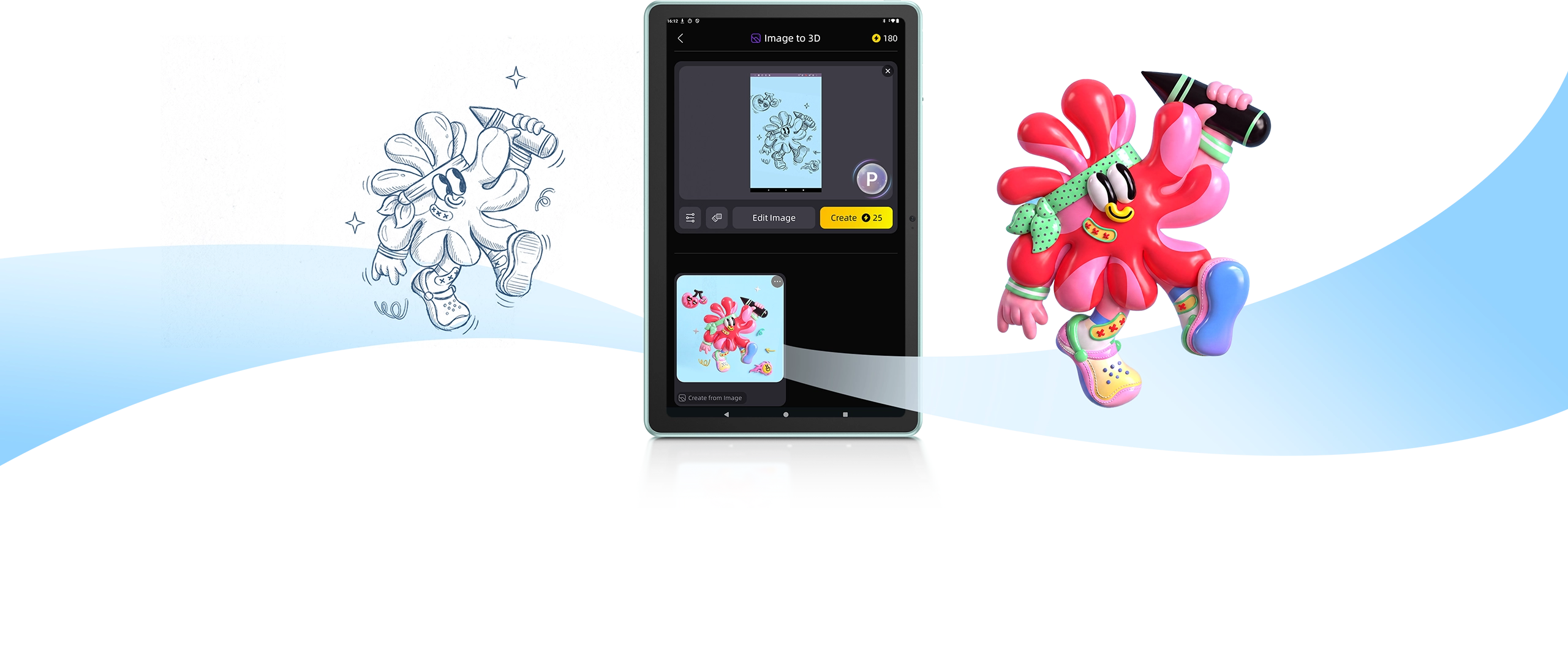
The headline feature is deep Tripo AI integration. Draw a character, upload the sketch, and the pad takes your idea from 2D sketch to 3D model with a fully rendered result you can rotate, pose, and export. A 1-month Tripo AI Pro subscription is included, and ibisPaint K comes pre-installed with lifetime access to its Education Edition, unlocking 47,000+ brushes and the professional plan with no ads. A Helio G99 chip, 6GB of RAM, 256GB of storage, and a 7,800 mAh battery rated for up to 18 hours of drawing make it a complete portable studio, and the adjustable protective case with a stand comes in the box.
Pros
1. True 2D-to-3D workflow built in with Tripo AI
2. Lifetime ibisPaint K Education Edition included
3. 16,384 pressure levels on a battery-free EMR stylus
4. Eye-care 12 inch laminated display, TUV certified
5. Standalone design, no computer needed
Cons
1. AI-generated 3D models still need cleanup for professional pipelines
Best for: Artists who want one portable device for drawing, painting, and AI-powered 3D model creation.
Not ideal for: Sculptors who live inside ZBrush all day. The UE16 below fits that workflow better.
2. ugee UE16: Best Pen Display for 3D Sculpting and Texture Painting
If your 2D to 3D plan runs through ZBrush, Blender, or Substance 3D Painter, the ugee UE16 is the sweet spot. Its 15.4 inch fully laminated display covers 99.8% of the sRGB color space (143% sRGB gamut volume), reads the pen at 5080 LPI, and weighs only 1.28 kg, so it moves easily between desk and lap. The U-Pencil delivers 16,384 pressure levels with tilt support, which maps directly onto brush strength when you sculpt or paint textures.
Shortcut support is generous: 8 physical keys, a scroll wheel, and 16 floating on-screen shortcuts you can drag anywhere. That matters in 3D apps, where you constantly orbit the camera, resize brushes, and swap tools. The UE16 runs on Windows, macOS, Chrome OS, Android, and Linux, and it picked up a 2025 iF Design Award. At $199 (list price $239) it undercuts comparable pen displays by a wide margin.

Pros
1. Large 15.4 inch laminated screen with wide color coverage
2. 16K pressure with tilt for sculpting and texture work
3. 24 total shortcut options for 3D navigation
4. Light enough for lap use
Cons
1. Needs a computer; there is no standalone mode
2. Serious sculpting still wants a reasonably capable PC
Best for: 2D artists adding real 3D sculpting and texture painting on a sensible budget.
Not ideal for: Anyone who wants to create away from a computer.
3. ugee M908: Best Budget Drawing Tablet for Blender and ZBrush
The ugee M908 proves you do not need to spend much to start sculpting. It is a 10 inch class pen tablet with a papery texture surface and the new PH23 battery-free stylus. In Blender or ZBrush your eyes stay on the main monitor while your hand drives the brush, and after a short adjustment period most sculptors stop noticing the difference. Eight customizable shortcut keys keep undo, brush size, and navigation under your fingers.
It connects over USB-C, ships with an OTG adapter and 10 replacement nibs, and supports Windows, macOS, Chrome OS, Android phones, and Linux. At $49 it is an easy first step into 3D.

Pros
1. $49 price is hard to beat
2. Papery surface with a precise PH23 stylus
3. 8 customizable shortcut keys
4. Works with computers and Android phones
Cons
1. No screen, so there is a short hand-eye adjustment period
2. Fewer shortcut options than a pen display like the UE16
Best for: Beginners who want a low-cost entry into 3D sculpting.
Not ideal for: Artists who paint detailed textures and want to see strokes directly under the pen tip.
4. ugee M708: Best Entry-Level Pick for 3D Beginners
The ugee M708 is the other $49 option (list price $59), and it earns its place with a 10 x 6 inch active area and the upgraded PD1 battery-free stylus with 16,384 pressure levels. That is flagship-class pressure sensitivity at an entry price, and you feel it when you feather a brush in Blender's sculpt mode or paint masks in Substance 3D Painter.
Eight customizable shortcut keys cover the essentials, setup is simple, and the battery-free pen means nothing ever needs charging. If you want the lowest-cost way to try 3D sculpting with proper pressure response, this is it.

Pros
1. 16,384 pressure levels at $49
2. Spacious 10 x 6 inch active area
3. Battery-free stylus, nothing to charge
4. Simple, beginner-friendly setup
Cons
1. No screen
2. No wireless connection
Best for: Students and hobbyists testing the 3D waters.
Not ideal for: Professionals who want a display or a wireless workflow.
5. ugee UT3: Best Large Standalone Pad for 2D Concept Art
The ugee UT3 is the biggest canvas here: a 14.25 inch standalone Android 14 tablet with three display modes (Regular, Ink Paper, and Color Paper) that switch between full-color drawing and paper-like reading. It shines as the 2D half of a 2D to 3D pipeline. Sketch characters, props, and environments anywhere, then bring the files into Blender or ZBrush when you are back at your desk.
At $429 (list price $499) it costs the most on this list, but it replaces a sketchbook, an e-reader, and a travel drawing tablet in one device. For a closer look at how it stacks up against its smaller sibling, read our UT2 vs UT3 comparison.

Pros
1. Huge 14.25 inch display with three viewing modes
2. Standalone Android 14 with full app access
3. Excellent for 2D concept work that feeds a 3D pipeline
Cons
1. Most expensive pick on this list
2. No built-in AI 3D tools, so 3D work happens back at your computer
Best for: Concept artists who sketch on the go and finish in 3D at a desk.
Not ideal for: Buyers who want direct sketch-to-3D on one device. That is the ArtPlay Pad's job.
2D to 3D Workflow: How It Actually Works
The traditional pipeline looks like this. Sketch concepts in 2D, block out forms in Blender or ZBrush with your tablet driving the sculpt brushes, retopologize the mesh, then paint textures with the pen. Pressure sensitivity and shortcut keys carry the workload, and a pen display speeds up the texture stage.
The AI pipeline is shorter. Draw a clean concept sketch, feed it to an image-to-3D tool like Tripo AI or Meshy, and you get a textured 3D model in minutes. The ArtPlay Pad builds this in, and on any other tablet you can run the same tools in a browser. Plan on cleaning up the topology if the model is headed for animation or 3D printing.
Many working artists mix both paths: AI for fast blockouts and ideation, hand sculpting for the hero assets. The tablet you choose above decides how smooth each path feels.
Frequently Asked Questions
Can you use a drawing tablet for 3D modeling?
Yes. Every tablet on this list works with Blender, ZBrush, Maya, and similar apps. A pen gives you finer brush control than a mouse for sculpting, texture painting, and retopology.
Do you need a screen tablet for ZBrush or Blender?
No. Screenless tablets like the M908 and M708 work well because your eyes stay on the monitor. A pen display like the UE16 feels more direct and helps most with texture painting and detail passes.
Can a drawing tablet turn a 2D sketch into a 3D model?
Yes, with AI. Tools like Tripo AI convert concept sketches into textured 3D models. The ugee ArtPlay Pad has this workflow built in, including a month of Tripo AI Pro.
What software do I need to go from 2D to 3D?
For hand-built 3D, Blender is free and industry standard, ZBrush leads for sculpting, and Substance 3D Painter covers textures. For AI conversion, Tripo AI and Meshy both run in a browser.
Is a standalone drawing pad worth it for 3D artists?
It depends on where you work. Standalone pads like the ArtPlay Pad and UT3 are great for 2D concept work anywhere. Serious sculpting still happens on a computer, so many artists pair a pad with a desktop setup.
Final Thoughts
The jump from 2D to 3D has never been smaller. If you want one device that draws, paints, and turns sketches into 3D models with AI, the ugee ArtPlay Pad is the clear top pick. If your plan is serious sculpting and texture painting on a desktop, the UE16 delivers a big laminated screen and 16K pressure for $199, while the M908 and M708 get you started for $49. Pick the path that matches how you actually work, and your first 3D piece is closer than you think.


