



Best 3 Ways to Turn a Drawing Into a 3D Model
A good sketch should not have to stay flat on the page. If you have ever typed "turn drawing into 3D model" into a search bar, you already know the options range from one-click AI tools to full modeling software, and picking a starting point is the hard part. This guide compares the three methods that actually work in 2026, walks you through each one step by step, and shows you how to get the finished model onto a 3D printer.
- What Happens When You Turn a Drawing Into a 3D Model?
- 3 Ways to Turn a Drawing Into a 3D Model Compared
- Way 1: Use AI to Turn a Drawing Into a 3D Model
- Way 2: Convert 2D Drawing to 3D Model Free Online
- Way 3: Model It Manually With Free Software
- How to Turn Picture Into 3D Model for Printing
- 5 Tips for Cleaner 2D to 3D Results
- The Easiest 2D to 3D Setup: ugee ArtPlay Pad
What Happens When You Turn a Drawing Into a 3D Model?
Your drawing is flat: lines, shapes, and shading on a 2D surface. A 3D model adds the missing dimension of depth, so the object can be rotated, viewed from any angle, and printed. Software gets you there in one of two ways. It can extrude your 2D shapes, pulling them straight back into a solid object with uniform thickness, which works well for logos, silhouettes, and nameplates. Or it can reconstruct full geometry, predicting what the back and sides of your subject should look like, which is how modern AI tools turn a character sketch into a fully rounded figure.
People convert their art for all kinds of reasons: printing custom figures and gifts, building game assets, making school projects, prototyping product ideas, or simply watching a drawing come alive. The right method depends on your drawing style, your patience, and what you plan to do with the finished model.
3 Ways to Turn a Drawing Into a 3D Model Compared
Here is the quick overview before we dig into each method.
| Method | Best for | Cost | Skill needed |
|---|---|---|---|
| AI image-to-3D generators | Characters, creatures, detailed art | Free tiers available | None |
| Online 2D to 3D converters | Logos, silhouettes, simple shapes | Free | Low |
| Manual modeling | Full creative control | Free (open source) | High |
Most beginners should start with AI or a free online converter. Manual modeling is worth learning once 3D becomes a serious hobby.
Way 1: Use AI to Turn a Drawing Into a 3D Model
The fastest route is AI. A turn drawing into 3D model AI tool reads the shapes, colors, and shading in your artwork and predicts the full 3D geometry behind them, usually in under a minute. Upload a sketch of a character and you get back a textured model you can spin around, inspect, and download. For ready-to-print files, check the ugee maker community, where users download and share 3D models for free.
Two popular options are Tripo AI and Meshy. Both run in the browser, both offer free credits, and both accept a single image as input. The basic workflow looks like this:
- Prepare a clean drawing. Bold outlines and a plain background give the AI the clearest read.
- Upload the image to the generator.
- Wait for the model, then rotate it and check every angle.
- Regenerate or adjust the settings if details look off.
- Export in a standard format like GLB, OBJ, or STL.
Because everything happens in the browser, you can turn sketch into 3D model online with nothing to install and no modeling experience required. The results are not flawless every time, but for speed and ease, nothing else comes close.
Way 2: Convert 2D Drawing to 3D Model Free Online
A 2D drawing to 3D model converter takes a simpler approach: it extrudes your flat artwork into a solid. Think of pressing a cookie cutter shape upward into a block of dough. The result is not a fully rounded sculpture, but it is ideal for keychains, nameplates, logos, ornaments, and relief-style art.
Tinkercad is the easiest place to start. It is a free browser-based design tool that lets you import a 2D SVG file, give it thickness, and export a printable STL. The workflow:
- Convert your drawing to SVG. Most drawing apps can export it, and free image tracers can do the job too.
- Import the SVG into Tinkercad.
- Set the thickness and adjust the overall size.
- Export the model as an STL file.
For photos, lithophane converters follow the same idea, mapping light and dark areas to thin and thick sections of a printable panel that reveals the image when backlit. If your goal is to convert 2D drawing to 3D model free online with zero learning curve, this is your method.
Way 3: Model It Manually With Free Software
Manual modeling gives you complete control. You import your drawing into a program like Blender as a reference image, then build the model on top of it, blocking out the big shapes first and refining the details later. Blender is free, open source, and powerful enough for professional film and game work, but expect a real learning curve. Plan on days of practice, not minutes.
This path makes sense if you want precise control over every edge and curve, or if 3D modeling is becoming a long-term skill. For younger creators and absolute beginners, starting with kid-friendly 3D modeling software keeps the early wins coming while the fundamentals sink in.
How to Turn Picture Into 3D Model for Printing
Whichever method you choose, printing adds a few extra requirements. A model that looks great on screen can still fail on the printer, so when you turn picture into 3D model files for printing, run through this checklist first:
- Export in STL, OBJ, or 3MF. STL is the universal choice for printing.
- Make sure the model is watertight, meaning no holes or broken surfaces. Many AI tools and slicers can repair this automatically.
- Check the size and wall thickness so thin parts do not snap.
- Slice the model with free software like UltiMaker Cura, or the app that comes with your printer.
- Print a small test version before committing to a full-size print.
Need inspiration for what to make? These 3D printer ideas for kids are a great starting point. If you are also shopping for a machine, our guide to the best 3D printers for kids in 2026 covers the safest and easiest options.
5 Tips for Cleaner 2D to 3D Results
A few small habits make a big difference in output quality, no matter which tool you use.
- Use high-contrast line art. Dark lines on a light background read best.
- Keep one subject per image. Crowded scenes confuse AI generators.
- Close your outlines. Small gaps can create holes in extruded models.
- Start simple. Master a single character or shape before tackling complex scenes.
- Inspect the model from every angle before printing, including the back and the bottom.
The Easiest 2D to 3D Setup: ugee ArtPlay Pad
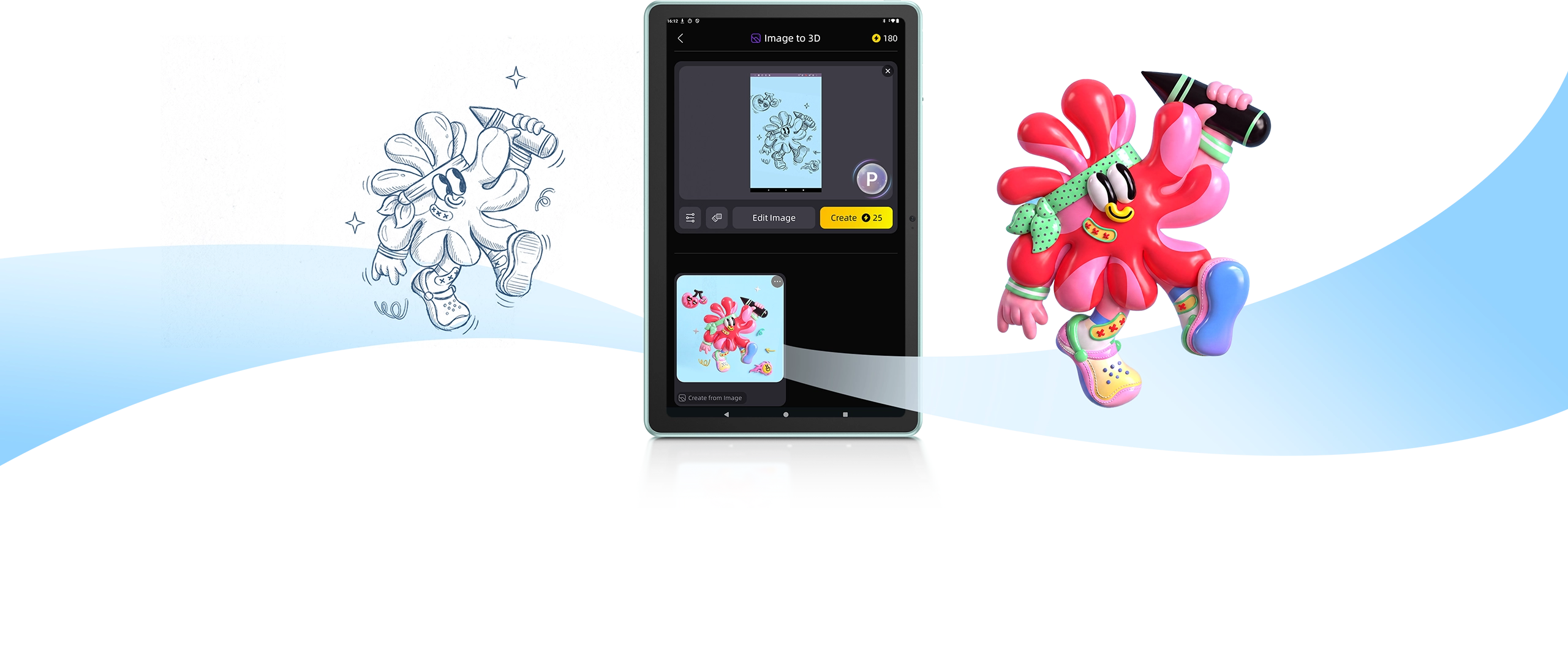
If the draw-it-then-model-it workflow sounds appealing, the ugee ArtPlay Pad was built for exactly that loop. It is a standalone creative pad designed for young artists, and its headline feature is the 2D-to-3D creative toolbox: sketch in the pre-installed ibisPaint K app, then send your artwork to the deeply integrated Tripo AI and watch your 2D character evolve into a fully rendered 3D model. A 1-month Tripo AI Pro membership comes included in the box.
The drawing experience itself is professional grade. The battery-free U-Pencil Pro uses EMR technology with 16,384 levels of pressure sensitivity, 60 degrees of tilt support, and a 3-gram initial activation force, so every stroke lands naturally. The 12-inch 2000 x 1200 display is TÜV SÜD low blue light certified, with fully laminated, paper-like anti-glare glass that stays easy on young eyes during long sessions. A palm rejection switch on the top edge keeps accidental touches off the canvas.
Because it runs Android 14 on a MediaTek Helio G99 chip with 6GB of RAM and 256GB of storage, no computer is required at any step. ibisPaint K comes with lifetime access and over 47,000 brushes, the 7,800mAh battery supports up to 18 hours of continuous drawing, and the adjustable silicone case doubles as a stand. Pair the pad with a Funbox 3D printer and the loop is complete: draw, convert, and print, all from one device. See the full specs on the official ArtPlay Pad page.
Frequently Asked Questions
Can I turn a drawing into a 3D model for free?
Yes. Tinkercad and Blender are completely free, and AI generators like Tripo AI and Meshy offer free credits or free tiers that are enough to try the full workflow end to end.
What file format do I need for 3D printing?
STL is the standard. OBJ and 3MF also work with most slicers. If your tool only exports GLB, convert it to STL with a free online converter before slicing.
Do I need modeling experience to turn a sketch into a 3D model?
No. AI generators and online converters handle the hard part for you. Manual software like Blender rewards experience, but it is an option, not a requirement.
Can AI turn any drawing into a 3D model?
AI works best on clear, single-subject artwork with clean outlines and a plain background. Busy scenes, heavy shadows, and overlapping characters may need cleanup or a second generation pass.
Final Thoughts
Learning to turn drawing into 3D model creations is one of the most satisfying upgrades an artist can make in 2026. Start with the method that matches your goal: AI for fully rounded characters, a free converter for logos and reliefs, or manual modeling for total control. Then print your favorite result and hold your drawing in your hand.


